Guide 5 of 6 · Trail maps
See the mountain
Every lift and run on one map
The resort's trail map before you go, and your whole day drawn on the map after.


Already have Yewki? Open this page on your phone.
§ 01
Open the maps
On the resort page
Tap
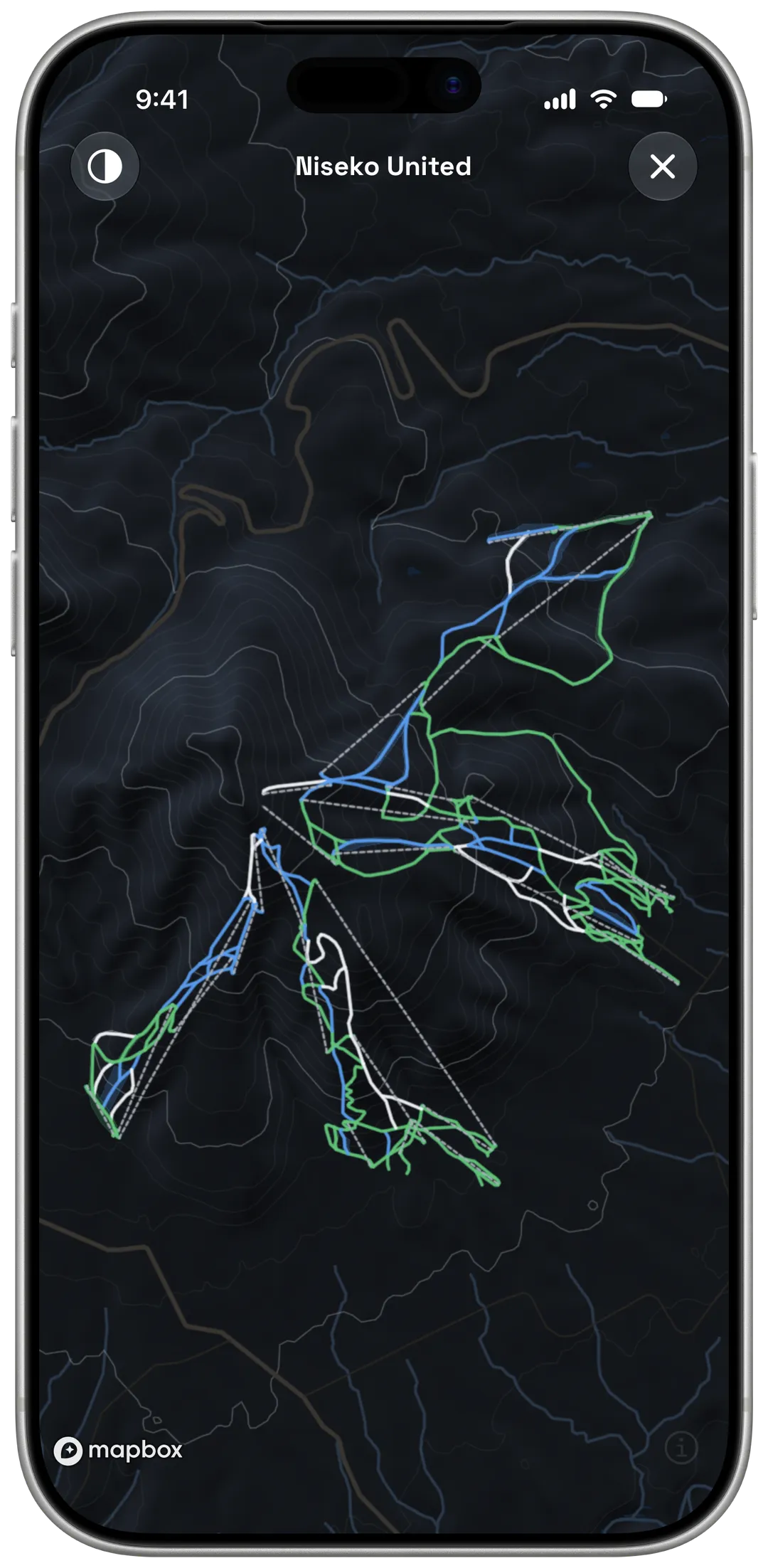
Mapfor the resort's own trail map. TapInteractivefor a map you can zoom, with every run and lift.Tap any run or lift
See its name and details.
After your day
Open the session and go to
Maps (Beta):2D,3D, orReplayto watch your day again.
§ 02
Read the map
Most resorts use green, blue and black. In Europe, red is the intermediate colour.
- Easy
- Intermediate
- Advanced
- Intermediate (Europe)
- Lift
§ 03
On the mountain
Maps download by themselves
Yewki downloads the maps for your current and upcoming trips on Wi-Fi, so they work with no signal.
Light or dark
Switch the map style for a bright day or a flat-light day.
Share your day
Share Sessionmakes a card with your map and the stats you choose.
§ 04
Frequently asked questions
Does every resort have a trail map?
Not yet. The Maps section shows only for resorts with map data.
Do maps work with no signal?
Yes, for the resorts of your current and upcoming trips. Yewki downloads them on Wi-Fi.
Are maps free?
Yes. Session maps are in beta.